
If you have paused keywords in your Google Ads account, there is a real chance they are running again right now without your knowledge. Google has been quietly re-enabling paused keywords through a system tool, and here is the scary part: this is happening even to advertisers who have already turned off auto-apply recommendations.
This is not a rumour. Advertisers have been flagging this on LinkedIn, Reddit, and in PPC communities, and it has been confirmed by Search Engine Land.
What Is Actually Happening
Advertisers have been noticing that keywords they intentionally paused are being switched back on, without their permission.
The changes are showing up in Change History under something called "Google Ads system tool: low activity bulk changes." So this is not the usual auto-apply recommendations issue. This is a separate system-level tool that Google is using to re-enable paused keywords.
Keywords that you specifically went in and paused; maybe because they were not converting, maybe because they were too expensive, maybe because they were completely irrelevant to your business. Google has been switching them back on through this tool.
And the worst part? There is no notification. You do not receive an email. You do not receive an alert. Your keywords just start spending money again, and unless you are actively checking, you would never know.
I have not personally seen this happen in my accounts yet. But lots and lots of advertisers have been reporting it, so it is definitely worth going in and having a check.
How to Check Your Account
The first thing you need to do right now is check whether this has happened in your account. There are two methods I recommend.
Method 1: Filter by Tool
Navigate to "Change History" in Google Ads and set the date range to the last 60 days to be safe. Click "Filter" and select the filter type "Tool." Tick "Bulk edit" and "Bulk upload," and also tick "Recommendations (auto-applied)" just for good measure. Click Apply and scan through the results for any changes that look suspicious, especially any paused keywords being re-enabled.
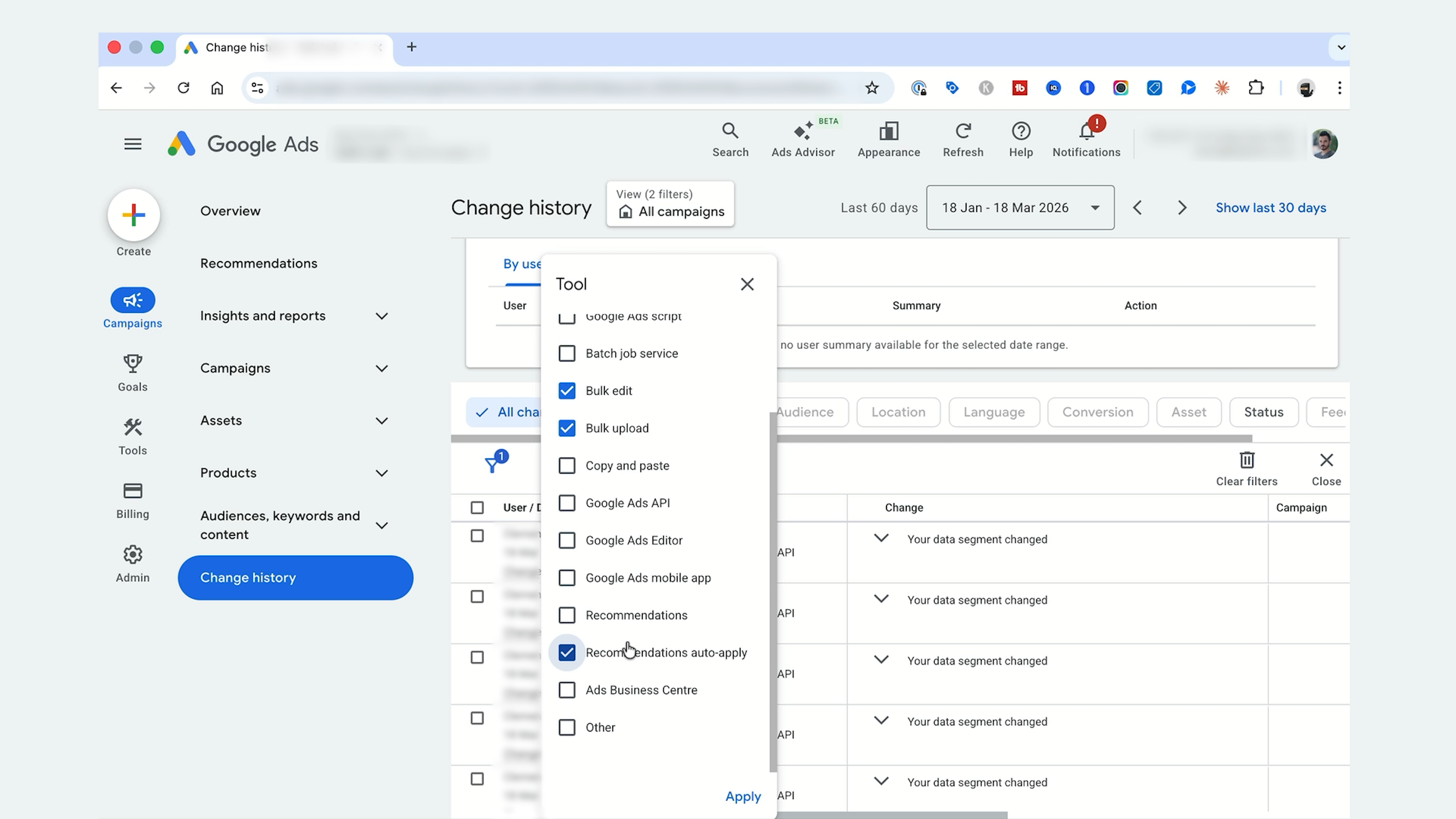
Method 2: Filter by Item Changed
Remove the previous filter, click "Filter" again, and this time select "Item changed." Tick "Keywords" and also tick "Recommendations (auto-applied)" again just to be thorough. Click Apply and look through the results for anything that looks suspicious or dodgy; any keywords being switched back on that you did not authorise.
For both methods, if you find re-enabled keywords, pause them again immediately. Note which campaigns and ad groups are affected. And look for the change source "Google Ads system tool: low activity bulk changes." That confirms your account has been affected.
While You Are In There: Check Auto-Apply Recommendations
Now, while you are in your account checking all of this, it is also worth making sure that you have auto-apply recommendations turned off.
The keyword re-enabling issue seems to be happening through a separate system tool, not through auto-apply recommendations. But auto-apply recommendations is still something you want to have switched off, because if it is enabled, Google can also make other changes to your account without asking you first.
A lot of advertisers do not even know this setting exists. It can be enabled by default on some accounts. And in some cases, Google Ads representatives have enabled it during account reviews without making it clear what it does. So even if you never turned this on yourself, it might still be active in your account right now.
To turn it off, navigate to "Recommendations" in the left sidebar, click the "Auto-apply settings" tab at the top, and make sure any items related to keywords are switched off.
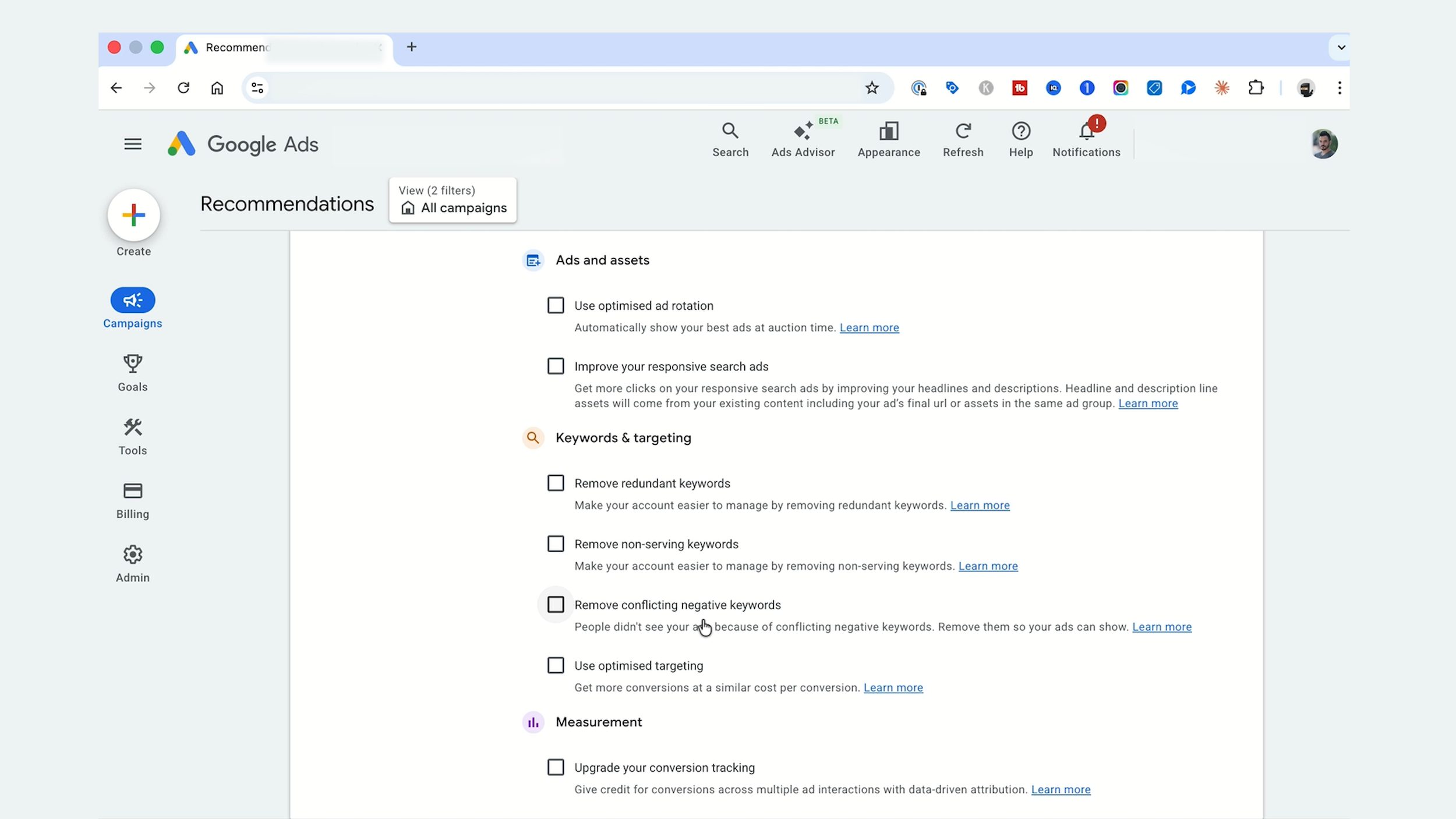
Which Auto-Apply Recommendations Are Dangerous vs Safe
Here is a breakdown of what you absolutely need to turn off.
Keywords: Anything related to keywords, including adding new keywords, removing redundant keywords, and re-enabling paused keywords. You should be making all keyword decisions manually.
Bidding: Anything related to bidding, including switching your bid strategy, adjusting your Target ROAS, or changing your Target CPA. These are critical decisions that should be based on your business goals, not Google's suggestions.
Budget: Google loves to recommend increasing your budget. But it does not know your profit margins, your cash flow situation, or your overall marketing strategy. Budget decisions should always be yours.
Targeting and Audiences: If Google starts changing your targeting without your knowledge, it can completely alter who sees your ads.
Now here is what is generally safe to leave on: ad-level suggestions like responsive search ad improvements or adding ad extensions can be relatively low-risk.
But honestly, my recommendation is to turn everything off. Even the "safe" ones can occasionally make changes you do not agree with. And the whole point of auto-apply is that it happens without your approval. I would rather review recommendations manually and apply the ones I agree with, than let Google make changes to my account behind my back.
At my agency Big Flare, we turn off auto-apply recommendations on every single client account as part of our onboarding process. It is one of the first things we do.
Setting Up Ongoing Monitoring
Google changes things all the time. New settings are introduced. Existing settings are reset after account updates. And if you have a Google Ads representative on your account, they can sometimes re-enable auto-apply without telling you.
Here is what I recommend:
Set a recurring calendar reminder to check your auto-apply settings once a month. It takes 30 seconds. Just go to Recommendations, click Auto-apply, and make sure everything is still switched off.
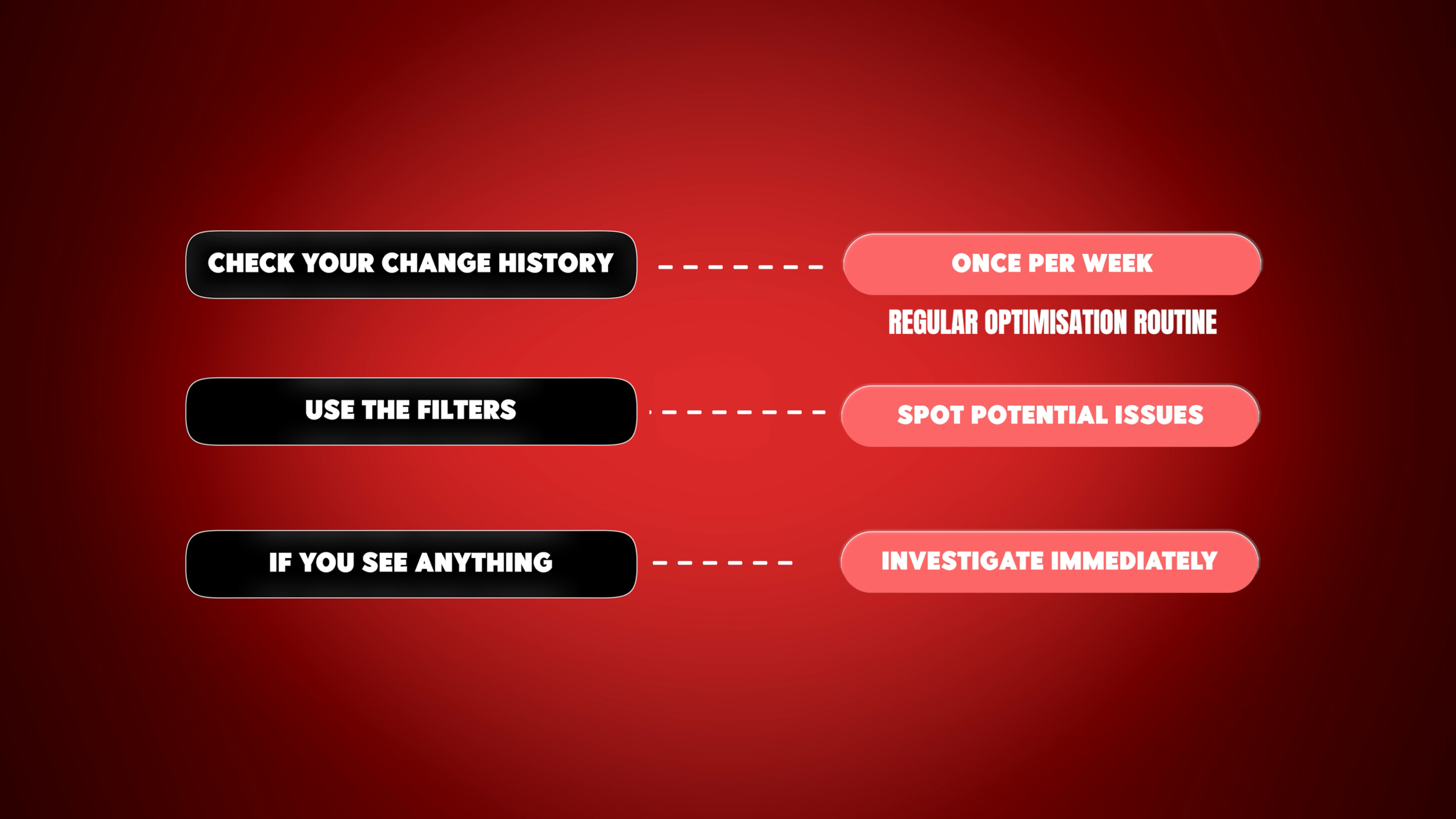
Check your Change History at least once a week as part of your regular optimisation routine. Use the filters above to quickly spot any potential issues. If you see anything, investigate immediately.
If you are running an MCC (a manager account with multiple child accounts), you need to check auto-apply settings and change history on every single account individually. Auto-apply settings are account-level, not MCC-level. So even if you turned it off on one account, it could still be enabled on another.
If you ever speak with a Google Ads representative who asks to "optimise your account" or do a "health check," make sure you verify your auto-apply settings immediately afterwards. I have seen reps enable auto-apply recommendations during these sessions, sometimes without explicitly telling the advertiser.
The Bigger Picture: Google's Push for Automation
This is part of a bigger trend. Over the past few years, Google has been steadily pushing advertisers towards more automation and less manual control: Performance Max replacing Standard Shopping, broad match becoming the default keyword match type, Smart Bidding being the recommended strategy for almost every campaign, and now re-enabling your paused keywords through system-level tools, even when you have already turned off auto-apply.
I am not anti-automation. I use automated bid strategies, I run Performance Max campaigns, and I let the algorithm do its thing in many areas. But there is a critical difference between choosing to use automation and having automation forced on you without your knowledge.
The keyword re-enabling issue is a perfect example. You made a deliberate decision to pause a keyword. You had a reason for it. And Google overrode that decision automatically. That is not helpful automation. That is loss of control.
Stay vigilant. Check your settings regularly. And never assume that the settings you configured last month are still the same today. Google's platform is constantly evolving, and new automated features can appear at any time. The advertisers who maintain control of their accounts are the ones who achieve the best results.
Conclusion
Google has been quietly re-enabling paused keywords through a system tool called "Google Ads system tool: low activity bulk changes," and this is happening even to advertisers who have turned off auto-apply recommendations. To protect your account, check your Change History using the Tool filter or the Item Changed filter, looking back at least 60 days. While you are there, make sure auto-apply recommendations are fully turned off, particularly anything related to keywords, bidding, budgets, and targeting. Set up ongoing monitoring with a monthly auto-apply check and a weekly Change History review. If you run multiple accounts through an MCC, check each one individually. And always verify your settings after any interaction with a Google Ads representative. This is part of Google's broader push towards automation, and the only way to maintain control of your account is to stay vigilant and check your settings regularly.