
When it comes to keyword targeting in Google Shopping Ads, after your product title, the single most important field in your entire Shopping feed is the product type.
It is the second biggest lever you have for controlling which keywords Google actually shows your products for.
And yet almost every store I audit has it completely wrong. They leave it blank, they copy in their website menu navigation, or they let their feed app stuff it with junk. One I found on a high-spend product read:
shopify_nz_6639596765393_39808271450321_mattress1Which means they are throwing away one of the best free targeting tools Google gives them.
So I built a free AI tool that writes a perfect, keyword-rich product type in about thirty seconds from nothing but a product URL. And I am giving it away - grab it here.
What The Product Type Field Actually Does
Product type is a field in your Shopping product feed that tells Google which searches your product belongs in.
Here is the part I love about it. Shoppers never see it. It is invisible on the ad, invisible on the listing, invisible everywhere a customer looks. So it is pure targeting with zero downside. You cannot make your ad uglier or your copy worse by filling it in properly. There is only upside sitting there unused.
Product types can go five levels deep, with each level separated by a greater-than sign. Five levels means five separate opportunities to tell Google what search queries you belong in. Most stores use one level, and a weak one at that.
The Free Tool
The tool is a Google Gemini Gem. That is the whole setup story: open the link, make sure you are signed in to your Google account, and you are away. No paid account, no connectors, nothing to install.
You paste in a product URL, it reads the page, does the keyword research, and hands you back a fully optimised five-level product type ready to drop straight into your feed.
Inside the Gem you can pick which model to run. I used 3.5 Flash for the demo because it is faster. If you want to spend a bit longer and potentially land a better result, switch to the thinking model instead.
Walking Through A Real Optimisation
I ran it on a real product so you can see exactly what comes back: the AG1 Athletic Greens Pro travel packs.
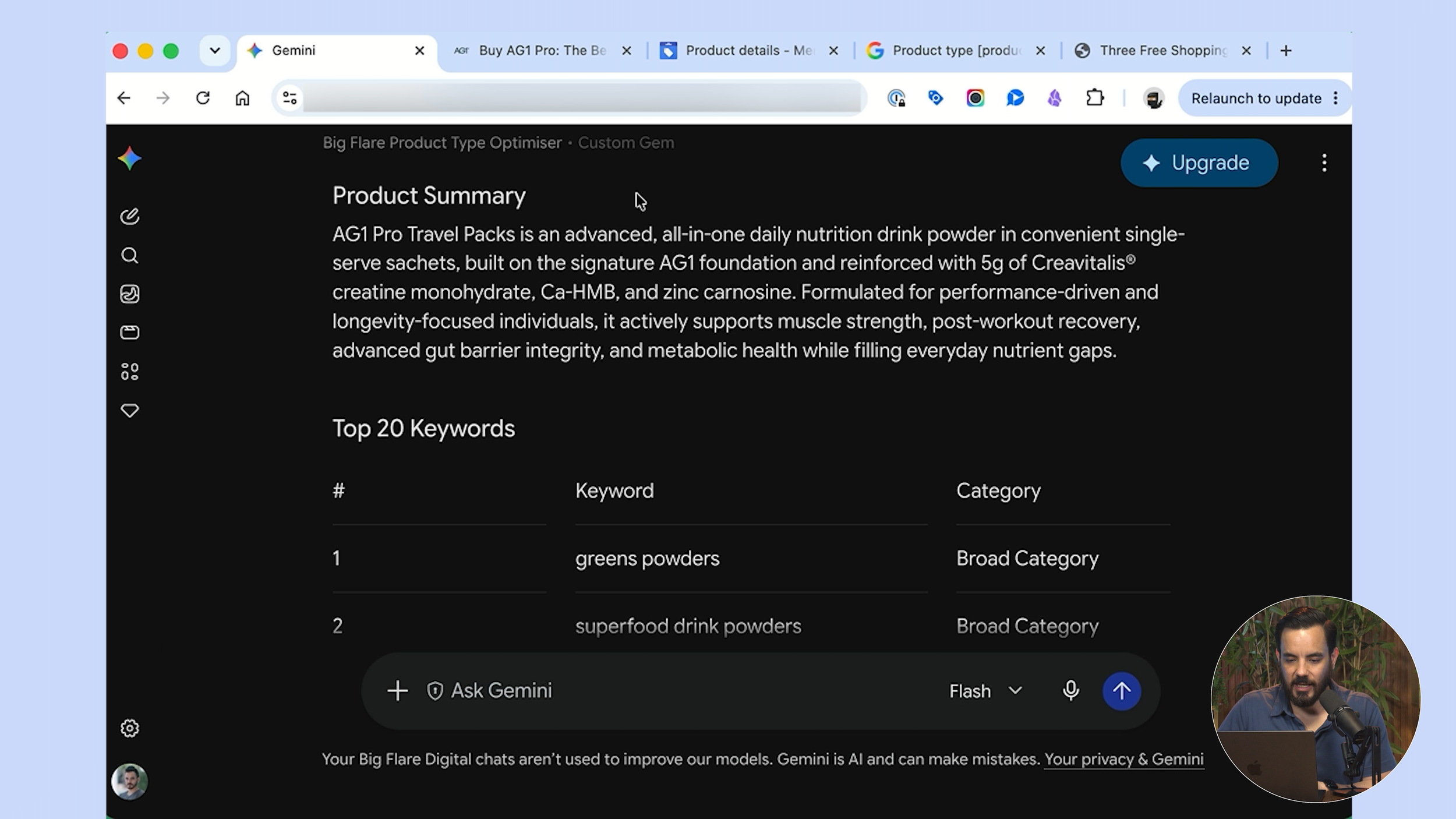
Paste the URL, hit go, and phase one completes. The AI reads the page and reflects back its understanding of the product in a short two or three line summary. For AG1 it came back with "an advanced all-in-one daily nutrition drink powder in convenient single-serve sachets".
That summary is there for one reason. It proves the AI has actually understood what you sell. If anything is wrong, just chat back and correct it before it goes any further.
Next it lists out the top 20 keywords it thinks are worth going after, and it labels each one so you know what type of search it represents: a broad category, a sub-category, or a specific product. For AG1 that ran from "greens powder" at number one, through "greens powder with creatine", "greens powder sachets", "athletic greens travel packs" and on down the list.
Then it asks you a question: are there any keywords you want included in the optimised product type?
This is your moment to add anything you know from your own keyword research that has not already been covered. Paste in a comma-separated list and it will force those in. Or if you would rather let the AI run with its own thinking and research, literally type "no" and hit enter.
A few seconds later you have your product type.
What A Properly Optimised Product Type Looks Like
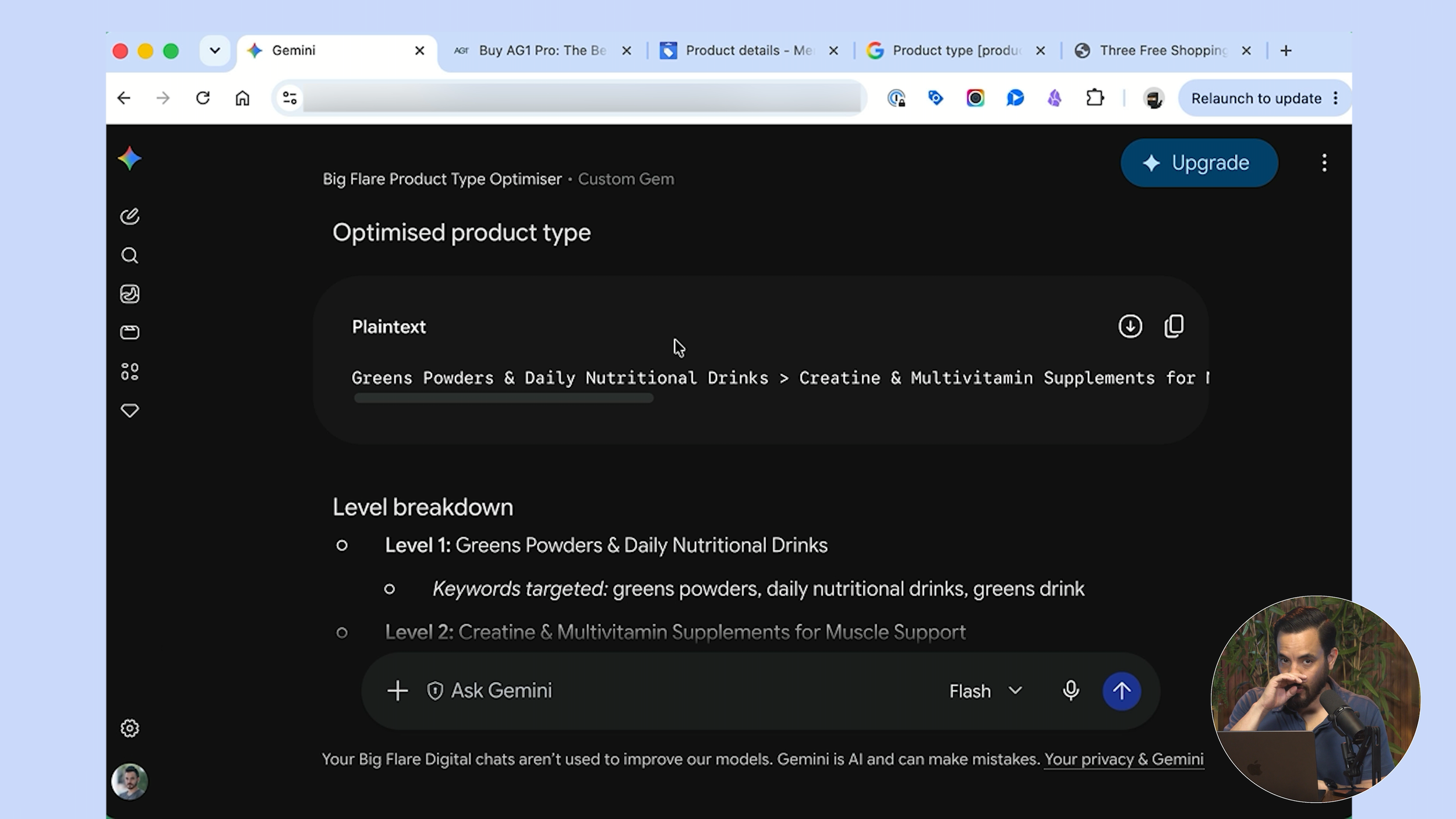
Here is what came back for AG1:
Level 1: Greens Powders and Daily Nutritional Drinks Level 2: Creatine and Multivitamin Supplements for Muscle Support Level 3: Premium Daily Greens Powder with Creatine Level 4: Performance Greens Powder Travel Pack Level 5: All-in-One Advanced Greens Drink Travel Pack Sachets
Look at the structure of that. Level one is broad, but it is never a generic department name. Then the levels mix category keywords, use-case keywords and product keywords, with each level aimed at a different kind of search. Level five is the hyper-specific, high-intent product-level phrasing.
Alongside the copy-ready code block you also see a level-by-level breakdown explaining which search queries each level is targeting, a short strategy explanation, and the full list of keywords it went after. So you are not blindly trusting it. You can see the reasoning.
Check What You Have Right Now
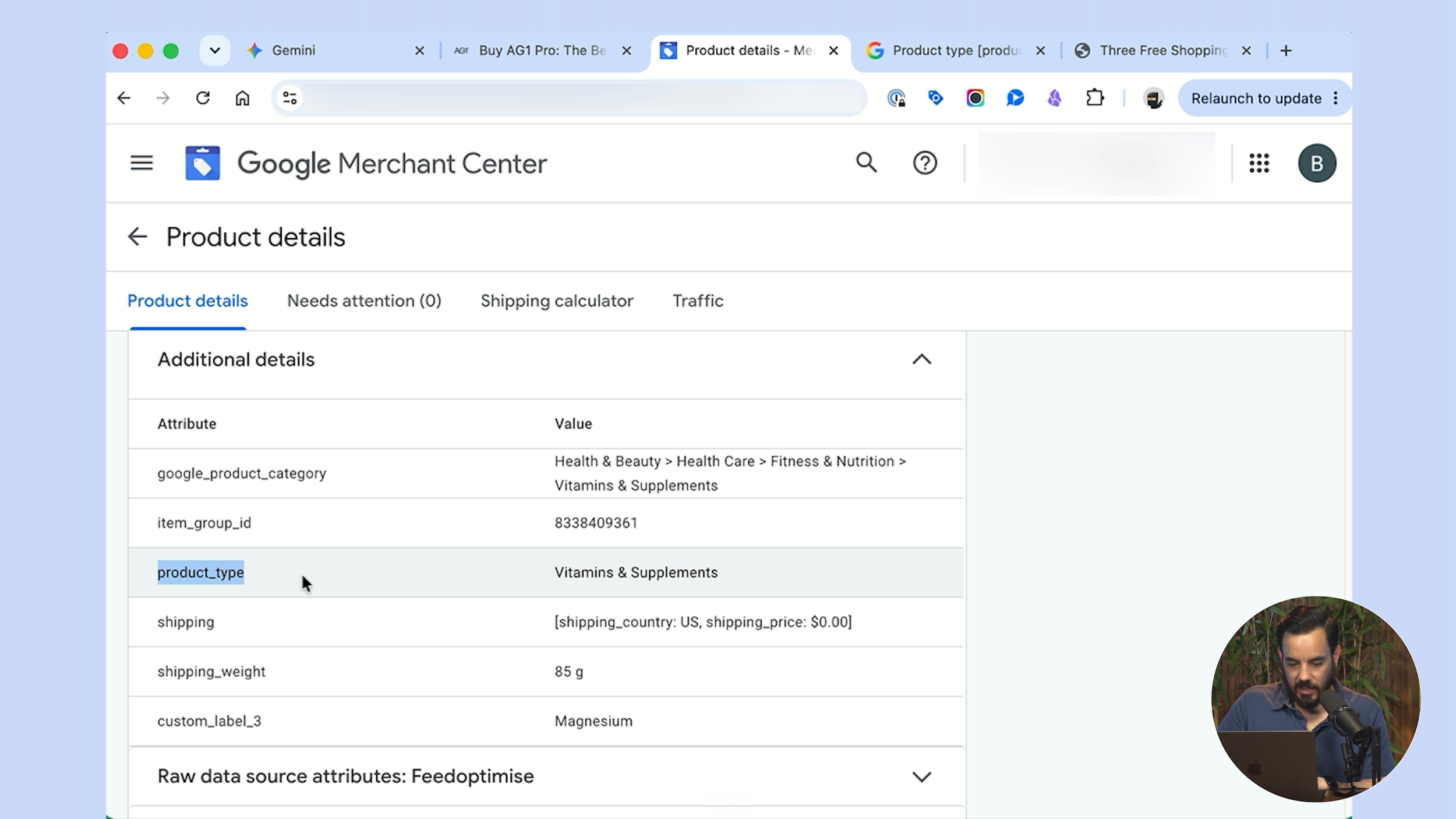
Head into Google Merchant Center, click Products, and open up any product. Scroll to the bottom, under Additional details, and there is your product type.
In almost every ecommerce Google Ads account I audit, what I find there is something like "Vitamins and supplements". One level deep, thin, and with no useful keywords in it at all. Left on default settings.
Compare that to the five-level version above and the size of the opportunity is obvious.
How To Actually Change It
This depends on what generates your feed.
If you use a third-party feed tool, log in to that tool and make the change there. If your feed lives on a Google Sheet, find the product type column and paste it in.
And there is one route that never fails, whatever you are using. In Merchant Center, click Edit product, scroll down to product type, paste it in, and click save. If you have no idea what tool or system is generating your feed, do it that way.
The Mistake To Watch Out For
Here is one I see people make when they first try this.
They see the product type field, think "right, I need five levels", and start adding additional separate product type entries. Level one in the first, level two in the second, and so on.
That is a mistake. Adding extra product types that way just creates second and third product types that never actually go into use. Google only uses the first one.
You tell Google all five descending hierarchical levels inside a single product type field, separated by that greater-than punctuation mark. One field, five levels, one paste.
Rattle Through Your Whole Product List
Once you have copied the first product type out of the code block, paste in a second product URL and the Gem optimises the next one. Back to back, inside the same chat. You can work through a decent chunk of your catalogue in one sitting.
Which Of My Tools To Use When
I have shared a few AI tools for different parts of your product feed, so let me draw the line clearly.
Ask yourself which feed field you are optimising.
Product type: the Gemini Gem covered here. One product at a time, zero setup, just be signed in to Gemini.
A single product title: the Product Title Optimiser Gem. Same zero-setup approach, aimed at the number one keyword field in your feed.
Many product titles at once: the Claude Co-work batch product title optimiser. This one is the techie option. You need Co-work access, connectors and a plugin install. In return it batch optimises titles across your whole catalogue with deeper research, pulling in your own search term and Keyword Planner data, and exports a ready-to-upload feed.
Bottom line: quick fixes go to the Gems, and a whole catalogue at once goes to the Claude one.
If You Would Rather Not Do This Yourself
This tool makes optimising your product types genuinely fast and easy. But you might be reading this and realising your product types are only the tip of the iceberg, and what your account really needs is a proper set of expert hands on it.
If that is you, this is exactly what my agency does. At Big Flare we run Google Ads for ecommerce brands day in, day out, and we have generated over $150M in revenue for our clients across hundreds of stores.
If you would like us to take the whole thing off your plate, I offer a free strategy session to see if we are a good fit. No hard sell. You book a call, and we take a proper look at your account together.
Conclusion
Product type is the second most powerful keyword field in your entire Shopping feed, sitting just behind your product title. Because shoppers never see it, filling it in properly is pure targeting upside with no trade-off at all.
The main points to take away:
Product type tells Google which searches your product belongs in, and it can go five levels deep, separated by a greater-than sign.
Most stores leave it blank, copy in their website navigation, or let a feed app fill it with unusable junk.
The free Gemini Gem reads a product URL, summarises the product so you can sanity check it, ranks the top 20 keywords by type, asks whether you want any keywords forced in, and returns a copy-ready five-level product type in about thirty seconds.
A strong product type opens broad without being a generic department name, mixes category, use-case and product keywords across the middle levels, and finishes with hyper-specific high-intent phrasing at level five.
Check your current product type in Merchant Center under Products, then Additional details.
Update it in your feed tool, your Google Sheet, or the route that never fails: Edit product in Merchant Center.
Never split the five levels across multiple separate product type entries. Google only uses the first one.
Paste in the next product URL to loop through your catalogue inside a single chat.
Dial in your product type alongside your product title and the two most important keyword fields in your feed are fully sorted, which is a genuinely powerful place to be for your Shopping campaigns.