Google is about to switch your Search campaigns over to AI Max mode, whether you like it or not. Automatically. On a deadline.
So here is what is changing, how to check whether it affects you, and why I would take control now rather than wait. Let Google flip the switch and if something goes wrong you have no way back. Move first, on your own terms, and you keep an escape hatch.
Who This Actually Affects
This applies if you run Google Ads Search campaigns using one of three things: Dynamic Search Ads (DSA), campaign-level broad match, or automatically created assets. If you are certain you are doing none of them, you can happily skip this one.
What AI Max Is, and Why It Is Being Forced on You
AI Max for Search is Google's new AI-powered version of a standard Search campaign. It goes beyond your exact keywords to match search intent, and can rewrite your ad copy and pick a more relevant landing page per search.
Why is it forced?
Google is retiring DSA, and you will have to use AI Max to do the same job. Their reasoning is that AI Max is simply better: better targeting, AI-customised creative, smarter landing-page matching, and more coverage across AI surfaces like AI Mode and AI Overviews.
Honestly, we all predicted this. DSA is the older, inferior product, and Google cannot support old campaign types forever.
The dates are nuanced. For automatically created assets and campaign-level broad match, the auto-upgrade happens this month. For Dynamic Search Ads, Google pushed the deadline back after advertiser feedback: the ability to create new DSA campaigns is removed in January 2027, and the automatic migration kicks in the following month, February 2027. So the September deadline is real and close for assets and broad match; DSA gives you until February 2027. Either way, the smart move is the same.
Why these three specifically? Because all three are already parts of AI Max, just inferior versions. DSA is essentially an inferior AI Max, and both automatically created assets and campaign-level broad match are features that live inside it. There is no point keeping the old settings when AI Max already has them and does them better.
Google Is Giving Us Levers This Time
Unlike past AI-first campaigns that handed you no control, AI Max gives you three levers: keywordless targeting, text customisation (the ad copy), and final URL expansion.
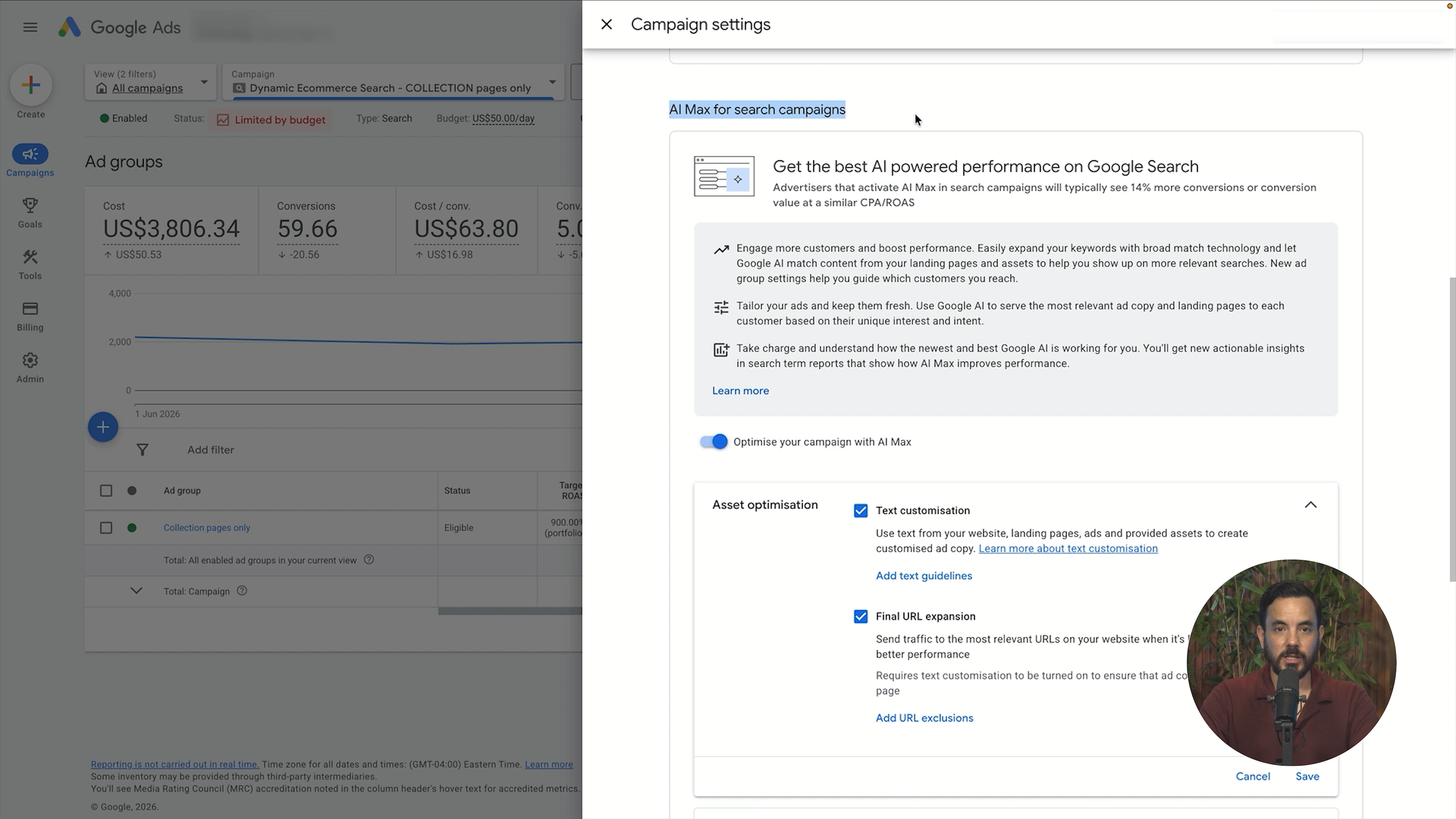
When you turn AI Max on, keywordless targeting is on by default but can be toggled off — it is an ad-group-level setting called search term matching. The ad copy customisation and final URL expansion can be switched off too. All three are yours to control.
On the ad copy, Google gives you "text guidelines" to tell the AI how to write your ads, the rules to follow, even words it may not say. There are also "brand inclusions", which decide how your ads handle brand searches: include all brands, include or exclude specific ones, or exclude all brands entirely. So even though this is a forced migration, you do not have to go one hundred percent AI Max on day one.
How to Check If You Are Affected
For automatically created assets and campaign-level broad match, filter for Search campaigns, click into the campaign, then Campaign Settings in the top right. Scroll to "Other settings" and you will see two toggles: "Broad match keywords" and "Auto-created assets". If either is ON, that campaign becomes an AI Max campaign as of September.
For DSA, go back to the Campaigns screen, filtered to enabled campaigns and ad groups. In the left sidebar, open "Audiences, Keywords, and Content", then "Dynamic Ad Targets". Any row there is an ad group running DSA that will be turned into AI Max, with the February deadline.
The One Thing I Want You to Do
If any of these three are enabled, use the auto-upgrade tool now, on your terms. Waiting until the last minute leaves you with no way back once you are auto-upgraded. If you transition and results tank, at the deadline the old product is gone, so there is nothing to fall back to. Port over now, while DSA still exists, and your old setup is a real fallback whose timing you control.
There is no magic "un-upgrade" button, but all the auto-upgrade does is switch on a single "AI Max for Search" toggle. To revert, you do not touch the levers, you just flip that one toggle back off, and the campaign runs exactly as before. Maximum time to revert and fix, on your schedule, not Google's.
How to Do the Upgrade
Using DSA, which has the most steps:
From the Campaigns screen, open "Audiences, keywords and content", then "Dynamic Ad Targets", and click into the campaign running DSA.
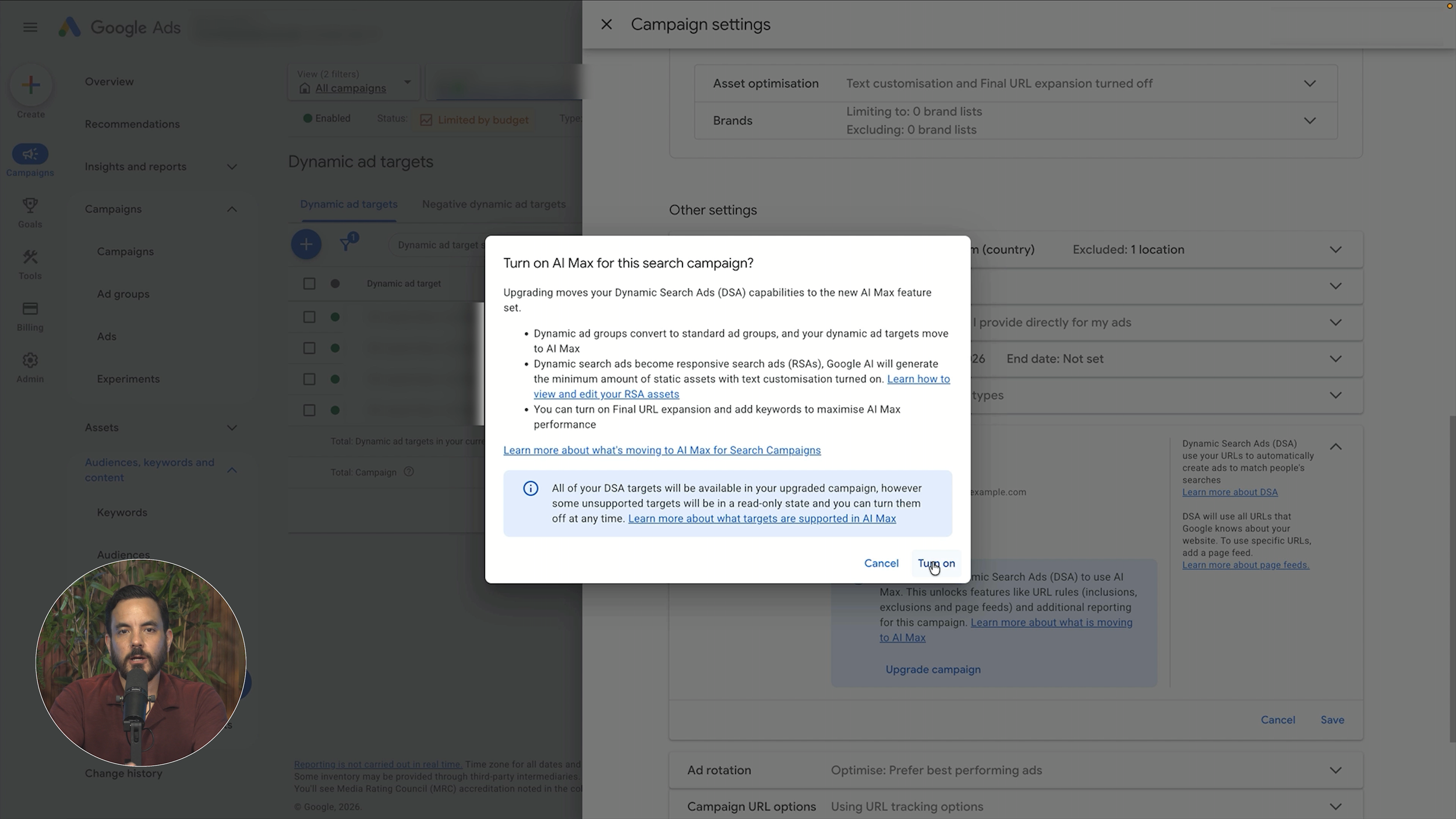
Open Campaign Settings and scroll down. You will see an "AI Max for Search" box, currently off. Do NOT just tick that box on. Instead, under "Other settings", click "Dynamic Search Ads setting".
A blue box appears with an Upgrade button.
Click Upgrade, read the warning notification, then click "Turn on", and give it a few minutes.
In the background, Google generates a brand-new responsive search ad, most likely eight headlines and three descriptions; since your DSA ads have two descriptions by default, it adds a third. Do not click upgrade and walk away, though. Four things to check.
Step 1: Check Your Ad Copy
That brand-new responsive search ad is the bit to check, because Google generated all of it. On the headlines, in my tests about six out of eight are good and two are bad. Cut the bad ones, replace them with something better, and keep eight in total. Two descriptions will match your original DSA and are fine; the third one Google added is often iffy. When it was bad in my tests, I removed it and stuck with two, which usually works better anyway.
Step 2: Run Two Responsive Search Ads, Not One
Do not stop at one DSA creative plus the single new RSA, set up a second responsive search ad. According to the many client tests I have run, a much better format is eight headlines and two descriptions per ad, with two ads per ad group. Google recommends fifteen headlines and four descriptions, but that creates over four thousand two hundred possible combinations, far more than Google can reasonably test, so most never see enough impressions to prove themselves. Keep it tight.
Quick aside: this is the sort of change I unpack every week in my free newsletter, so a forced migration never catches you out again.
Step 3: Add Your Keywords
Head to the keywords tab in your upgraded campaign. It will be empty, because DSA only allowed URL targeting, never keywords. Add around five to ten relevant keywords per ad group. This is genuinely one of the advantages of moving to AI Max, if DSA had ever allowed them, I would have recommended it all along. They are not strict targeting but a signal that teaches Google the most relevant traffic to chase, and it optimises around them and expands beyond them.
You will also see your URL inclusions and exclusions carried over exactly as before, plus a "total AI Max landing page matches" row showing what came from your own URLs versus AI Max's expansion. Nice transparency.
Step 4: Branded Searches
Three options: show ads on all relevant searches, control branded searches with brand inclusions and exclusions, or unbranded only. I recommend the middle option, and set your own brand as an exclusion so you are not doing branded bidding here. Your branded keywords should live in a dedicated Search Brand campaign, and that campaign should NOT have AI Max on, or it would expand beyond your branded keywords and stop being a brand campaign.
One more safeguard: also add your brand terms as negative keywords here. The brand exclusion is not one hundred percent accurate, so the negatives make sure your brand never crops up. Keep this as a non-branded discovery campaign, with brand traffic well away from it.
How to Stagger the Rollout
The principle: keep your new AI Max campaign as similar as possible to how you ran things before, then turn features on one at a time with a break between each. Staggering works in two of the three scenarios.
If you ran automatically created assets, switch to AI Max, turn text customisation on (it is basically the same thing), and leave final URL expansion off. Also turn keywordless targeting (search term matching, at the ad group level) off to start. Then layer the rest on one at a time, letting each stabilise.
If you ran campaign-level broad match, upgrade to AI Max and keep keywordless targeting on, since that is closest to broad match. Turn text customisation and final URL expansion off to begin with, then add them one after the other, stabilising between.
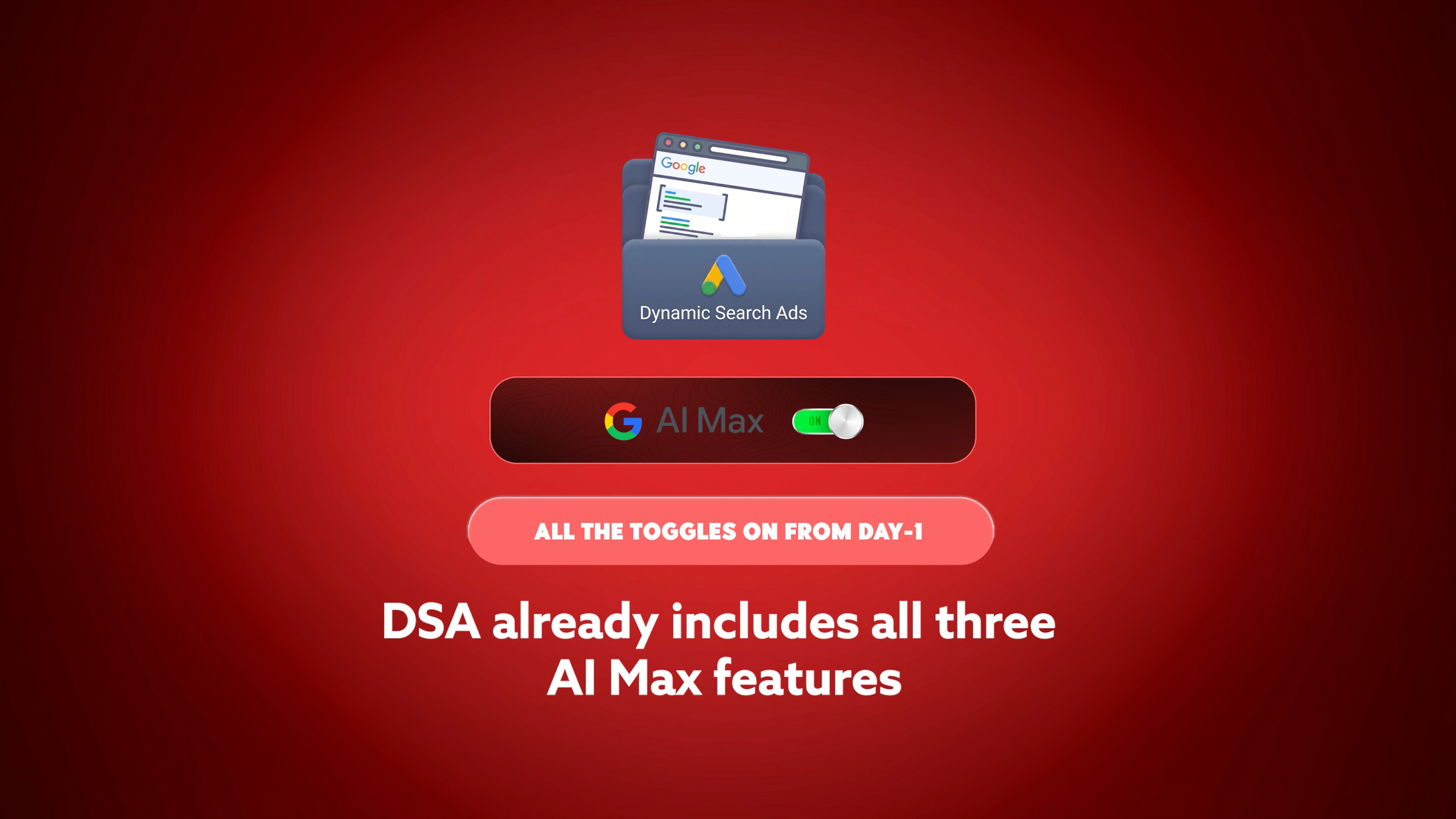
If you ran DSA, there is no staggering: switch to AI Max and turn all three toggles on from day one. DSA already does a version of all three: targeting expansion across your URL rules, a form of text customisation through its dynamically generated headlines, and keywordless-style expansion to find new traffic that works. Each toggle is just an improved version of what DSA already attempted, so there is nothing to hold back. Turn everything on, then watch performance and adjust.
Conclusion
AI Max for Search is a forced migration, but you decide the timing. The main takeaways:
Three setups are affected: DSA, campaign-level broad match, and automatically created assets.
Automatically created assets and campaign-level broad match auto-upgrade in September 2026. New DSA creation is removed in January 2027, with DSA migration in February 2027.
Port over voluntarily now while DSA still exists, so you keep a genuine fallback and can flip AI Max off if results tank.
For DSA, use the "Dynamic Search Ads setting" upgrade path, not the plain AI Max toggle.
After upgrading, fix the auto-generated ad copy, run two RSAs at eight headlines and two descriptions each, add five to ten keywords per ad group, and exclude your brand.
Stagger the rollout for automatically created assets and broad match. For DSA, turn all three levers on from day one.